
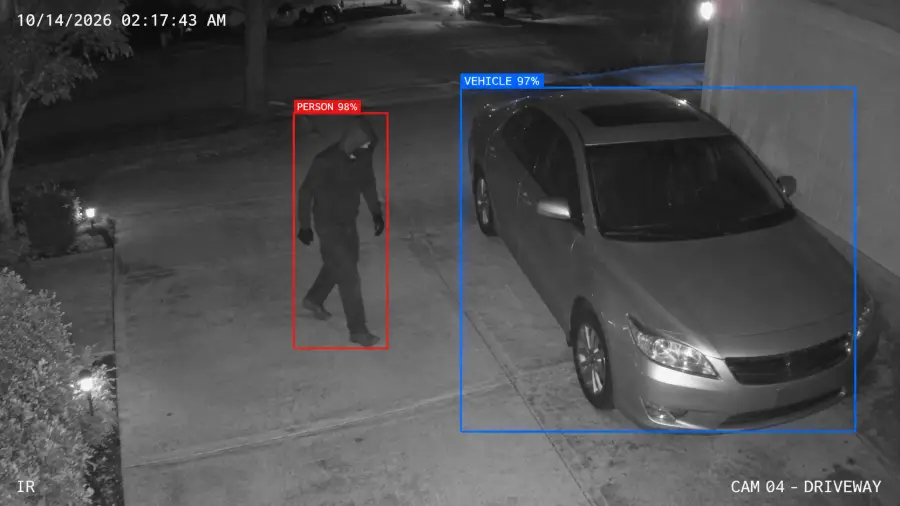
Alerts on your lock screen
Priority and Needs review alerts appear on your phone the moment they happen, along with an email. Tap one to open your cameras.

Monitoring & the Vigilant app
Every Vigilant camera customer gets the Vigilant app. When a camera sees something, our AI and our operators check it, we call the people on your list, and your phone shows the alert the moment it happens.
How monitoring works
Our AI reviews the picture and live video from the camera and sorts the alert: Priority, Needs review, or Routine. Routine activity is logged for you, not called in.
Real alarms go to a Vigilant operator. We aim to pick up every alarm within 60 seconds, and your monthly report shows how quickly we did.
We call the contacts on your call list, in the order you choose, and keep going down the list until someone answers.
After the call you get an incident report with the pictures, the video and what we saw, in your email and in the app.
The Vigilant app
The app works on iPhone, Android and any computer. There's nothing to download from an app store: open the customer login and add it to your Home Screen.
Priority and Needs review alerts appear on your phone the moment they happen, along with an email. Tap one to open your cameras.
Expecting a delivery or already handling it? Tap "We're on it / It's expected" on the alert and we stop calling your contacts about it. No sign-in needed.
Watch every camera live from your phone or computer, on site or anywhere else.
Every incident, with pictures, video and the outcome, filtered by camera, date or status.
Type what you're looking for, like "white pickup at the gate", and find it in your recorded events.
We keep improving the app, and the What's new page lists each improvement as it ships.
You stay in control
Managers change these from Settings in the app, any time, without calling us.
Evidence
Managers can download an evidence package for any incident: the report, video, pictures, the AI's review, and a log of who viewed it.
Every file carries a fingerprint, so anyone can confirm nothing was changed after the fact.
Account security
Sign in with Face ID, Touch ID or your Android fingerprint, or with your password plus a code from an authenticator app. Changing settings or downloading evidence asks you to confirm it's you. Your face never leaves your phone.
Settings lists every phone and computer signed in to your login, and if a phone is lost you can sign out every other device at once. When Vigilant support looks at your account to help you, they can only look, never change anything, and their visit shows in that list too.
Get the app
Open the customer login in Safari, tap Share, then "Add to Home Screen". Turn on notifications in Settings.
Open the customer login in Chrome and tap Install when it's offered. Turn on notifications in Settings.
Sign in from any browser. Everything in the app works on a computer too.
Tell us about your property and we'll walk through cameras, monitoring hours and the app.